Friday, May 29, 2015

MTM 2013 secrets

Introduction

As you probably know, MTM 2013 (Microsoft Test Manager) is a testing tool that can be used to organize test plans in suites and test cases, run manual and automated tests, define lab environments. 


This article will describe functionalities that you may not know and that can help you to manage your test plans much easier.

What is a test plan?


A test plan is a child of a test project. Think about having this kind of test plans for a project: 
- One test plan for each iteration that will contain suites linked to the requirements for that iteration
- One test plan for regression tests
- One test plan for smoke tests (this should be automated)
- You may also have one test plan that contains all test cases, grouped in static test suites that represent the functionalities of the application (authentication, administration, etc.)

A test plan may contain one or more Test Suites that can be
- Static
- Requirements based
- Query based
Every test suites contains one or more test cases. 

Also, a test plan contains a set of settings and configurations. The settings are used to define what data to collect during a test run (information about environment, a movie with the steps, etc.). The configurations are used to define different environments for run. For example "Windows 8.1 Chrome 64-bit CPU" is a set of configuration variable values. For a test case with different configuration with, let's say 3 configurations, 3 iterative runs will be performed when we run the manual test. 


Copying test suites and test plans

MTM offers the possibility to copy test cases by reference (meaning that there will be no new test cases, but the TC are referenced and, when you modify the test cases in one place, it will be modified also in the other place). Why would I need this? Think about having different test suites, one contains all Test cases with priority 1 and the other test suite contains Smoke tests. A test case can be part of both test suites.


This functionality is available like described below:


Cloning test suites and test plans

Cloning functionality will copy test cases by value (no reference, meaning that new test cases will be created).


Test cases shared steps

Shared steps are used for repeated sequences of steps, such as logging in, that will occur in many test cases. Avoiding entering to enter these sequences again and again, we should create shared steps. While running a test, if the shares step is already recorded, we can "play it" without being necessary to record it again.


Test steps parameters

Parameters allow a manual test case to run multiple time with different data. For example you may want to test if the format for email field is correct. In this case you want to create a negative test for not allowed values that should generate a validation message @email with values "email@", "@dot.com", "email@email@email.com" etc. When you run a recorded test, the test will automatically be repeated with a different set of parameters.


Conclusions

There are other interesting topics to be covered in MTM, like Exploratory testing, Test cases management in the Web portal etc. You have the opportunity to discover more "corners" of the MTM world during the test camp event that will take place on 13th June, in Iasi, Romania. For more information visit this page: TestCamp Iasi.


Happy testing and... make it green, becomes a dream :).

Friday, March 13, 2015

Testing with BrowserStack

Introduction
In this article we will present you BrowserStack used for
- live testing on different environments
- running your selenium tests on BrowserStack virtual workstation by using the desired capabilities
- taking screenshots of you page

In order to test the functionality of this tool you have to create an account and you'll have 100 minutes free plan for live testing, 100 minutes for automation and a limited numbed of screenshots.

Live testing 
With BrowserStack we can perform compatibility testing (public/internal url) on different OSs (Win 8.1, 8, 7, XP, MAC) and browsers , including Mobile and Tablet emulators (IOs, Android, Windows phone and Opera). This means that is no need for virtual workstations. 

On the virtual workstations we have Developers Tools Installed.

Negatives about this: not possible to test animations, refresh is too slow, not possible to listen to audio

Automation
BrowserStack allows running Selenium and JavaScript tests on multiple browsers in parallel: testing time can be cut down significantly if there are multiple tests running in parallel. This can be the same test running on different configurations (OS/browser), or different tests running on the same configuration. With access to our extensive BrowserStack cloud, parallel testing on many platforms becomes very efficient

Automated tests can be included in the following continuous integration systems: Jenkins, Travis, Circle

The tests can be written in C#, Java, Pyton, Ruby, Perl, Php, Node.js

Below you have an example of test written in Visual Studio with C# and opens google.com and submits text "Browserstack".


Enter your login data in:
("browserstack.user", "...")
("browserstack.key", "...")

The result is shown like this in BrowserStack account. Advantage: no need for having a remote connection, also we can see step performed in a visual manner by accessing Visual Logs tab


Screenshots
This functionality allows to view websites on real devices, with actual screen sizes, resolutions and view-ports:

We can also check web page layouts across multiple browsers at once by taking screenshots on different OS/browsers. With only one click we can generate images of a page. The images can be zipped and send to be analysed.
Costs


Conclusions

Buy the tool for one month to verify the offered functionality for:
- cross-browser testing functionality on many devices, including mobiles and tablets
- automation testing with selenium: we don’t need to create virtual workstations anymore with different environment and also able to run test in parallel (this should be tested in more detail before buying the product)
- screenshots – I would recommend this only for one user (which is more focused on UI testing, e.g. designer)

Recommendations: before buying the tool for automation, make sure you have the people capable of writing automated tests in one of the enumerated languages (for example I use C# in visual studio for selenium)

Advantages:
- no need for virtual workstations to perform manual testing and to run automated tests
- can run test in parallel
- emulators for mobile 
- pre-installed developers tools
- multiple desktop OS
- real browsers
- can test local and internal servers

Disadvantages:
- can be better documented (documentation can be found here https://www.browserstack.com/automate/c-sharp)
- sometimes is slow
- not possible to test animations,
- refresh is too slow,
- not possible to listen to audio

More reviews (different opinions):
http://www.sitepoint.com/review-browserstack-com/
http://code.tutsplus.com/tutorials/using-browserstack-for-cross-browser-testing--net-35487
https://www.trustradius.com/products/browserstack/reviews


Happy testing and... make it green, becomes a dream :).

Thursday, January 29, 2015

Selenium WebDriver with C# - Create Helper Classes (2)

Introduction
In this article we will continue transcribing the java code into c# for the following links:
The following are used:
- C# ans language
- Visual Studio 2012 as IDE
- Nunit for tests
- Hudson for continuous integration

ControlUtils

In this chapter we will write functions for working with controls and also how to use them.

Wait Elements

Before starting we need a way to wait an element on the page until it will be displayed. We may either use an implicit wait, by waiting a number of seconds or either waiting the element until is displayed on the page.

- implicit wait
- explicit wait

Functions for Controls
- get_text

- verify text
This function will return true or false and will check if the control's text is correct. You can use it like this.


- element_present
This function will return true or false and will check if the control is present or not on the page. You can use it like this.
- link_present
- click_link
- click_element

Usage: 

- double_click_element

Usage: 


- get_attribute
Below usage will return the Login button class name: 

- is_attribute_present
This will check if an attribute of a control is present or not. Imagine for example that you have to test if a control is or not disabled. Usage:

- send_keys

- refresh_page
- functions for selection controls

Happy testing and make it green becomes a dream!

Wednesday, January 21, 2015

Selenium WebDriver with C# - Create Helper Classes (1)

Introduction
In this article we will transcribe the java code into c# for the following links:
The following are used:
- C# ans language
- Visual Studio 2012 as IDE
- Nunit for tests
- Hudson for continuous integration

DriverUtils
First of all we can create a DriverUtils class that will contain functions for starting the web driver, getting the browser, opening the desired url, closing browser, login, logout, functions to be executed before and after all tests are run or after all test from a class are run. Also, we can include here a function that will log, at the beginning of each test, a name and a description.
Let's start!

Start WebDriver
  • Browser is an enum

  • _driver is declared globally
  • _driver is set and get
  • For working with Chrome and IE drivers we need to download the .exe drivers and include them in the project. 
  • Capabilities: describes a series of key/value pairs that encapsulate aspects of a browser. You can find more information about this on the internet
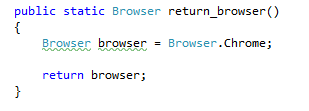
Return Browser

Open url
In order to open your url you can create a function

where the url is define in a ConstantsHelpers class

Close browser
Wait time 
This is a function used to implicitly wait the specified amount of time in milliseconds
You can use it like this:
wait_time(5000);

[SetUp][TearDown]
Depending on your project, you can set some actions to be taken:
- before starting all tests SetUp
- after running all tests TearDown

Here are some examples:

Login, Logout
Supposing you web page has a login page, you can include the Login, Logout function in SetUp and TearDown functions.
Below you have a login, logout examples:
Test Case Description
Another function that we added in this class is the one that, in the test logs, at the beginning of each test, writes a brief description about the test to be run.

Hope you enjoyed this article. Next week we will present more functions translated from java to c#.

Happy testing and make it green becomes a dream!

Popular Posts