Monday, November 14, 2016

Web Performance Testing with Visual Studio - JSON Extraction rules

Introduction

Visual Studio Enterprise 2015 or Visual Studio Ultimate 2013, gives you the possibility to test the performance of your application. In this article we'll show you how to use extraction rules in order to take information from a JSON response that is later used in a performance recorded test. It is required that you already know how to create a new performance test/record it, etc. If you don't, you can inspect MSDN documentation here.

Access token

In our application, we have a login form. After submitting, we receive a JSON response that contains variable access token that is used to authenticate in the application. In order to use this information, we need to use an extraction rule, to later use it in other requests.


Visual studio comes with some predefined rules, but, none of them is capable to extract information from a JSON. That is why we need to create a custom extraction rule.

What are the steps for creating a custom extraction rule:
  1. Open a Test Project that contains your Web performance test
  2. Create a separate class library project, e.g. ExtractionRule
  3. In the Class library project, add a reference to the Microsoft.VisualStudio.QualityTools.WebTestFramework dll
  4. Create a class that derives from the ExtractionRule class. Implement the Extract and RuleName members, e.g. JSONExtractionRuleClass (see below, the code for this)
  5. Build the new Class library project
  6. In the Test Project, where your performance test is, add a reference to the Class library project that contains the custom extraction rule  
  7. In the Test Project, open a Web performance test in the Web Performance Test Editor
  8. To add the custom extraction rule, right-click a Web performance test request and select Add Extraction Rule.
    The Add Extraction Rule dialog box appears. You will see your custom validation rule in the Select a rule list, together with the predefined validation rules. Select your custom extraction rule and then choose OK   
  9. Use this context parameter extracted from a JSON to later authenticate your requests. To do this, add a header to your request with name = Authorization and value = Bearer {{loginToken}}  
  10. Run your Web performance test
JSONExtractionRuleClass

The code for extracting the rule, necessary to pass step 4 is the following


Happy testing and... make it green, becomes a dream :)

Wednesday, November 2, 2016

1 Way to Integrate Applitools Eyes with Jenkins

Introduction

In an older post we talked about Applitools Eyes. What is it? It is an automation testing tool that will check all visual aspects of the application from a given screen, meaning that we don't need to write separate tests for each UI element on the screen. The tool provides easy integration with different test tools and frameworks like Selenium, CodedUI, HP QC, etc

Jenkins Integration

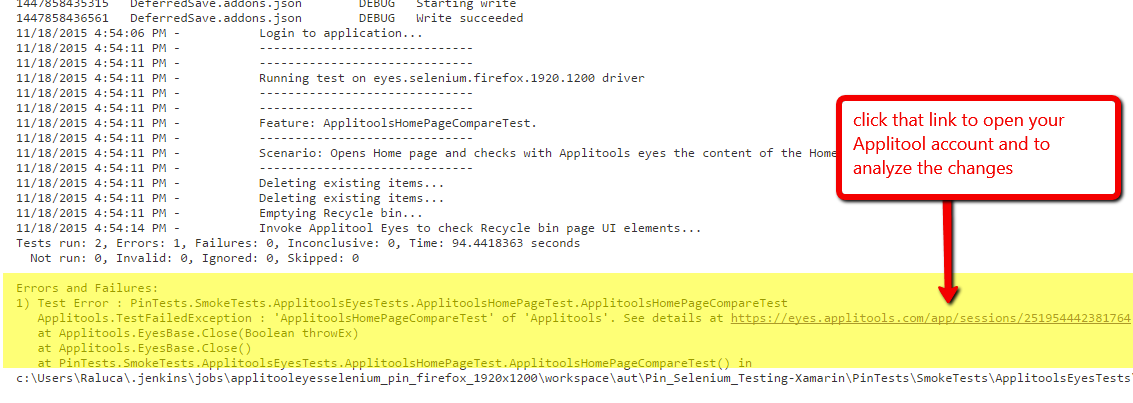
You can create a job that is running only tests having category = "Applitool". If a test fails, you will notice in Jenkins an error with a link to Applitools eyes site, that will load applications's UI, where you will be able to evaluate the test result, accept/reject changes, etc.


But, if there are several failures in the application, clicking on every link will be annoying. That is why, we can use Jenkins plugin, we will be able the integrate applitools ui directly in Jenkins.

Applitools Eyes Plugin

Go to Jenkins --> Manage Jenkins --> Manage plugins and install this plugin.
Go to Applitools job configuration and Build Environment check Applitools Support


Go to your project solution and add this:


and, before instantiating Eyes driver, do this:


Then run your job. Applitools Eyes will be integrated inside Jenkins. There you be able to accept/reject changes, etc, directly in Jenkins.


If you want to read more about this, please watch this video.

I hope you enjoyed this article!
Happy testing and... make it green, becomes a dream :).

Wednesday, September 28, 2016

Protractor - Getting non-angular iframe inside an angular application

If you have an Angular App that loads another Non-Angular App inside an iframe, getting objects inside iframe may be difficult.


Here is the solution I used:

describe('Inside non-angular iframe', function () {
        it('you can access iframe objects.', function () {
             ...
            _form.goToIFrame();
            //work with iframe objects
            _form.goToDefault();
});


where _form.goToIFrame(); and _form.goToDefault(); means:

    goToIFrame: function () {
        browser.switchTo().frame(browser.driver.findElement(by.tagName('iframe')));
        browser.ignoreSynchronization = true;
    },

    goToDefault: function () {
        browser.driver.switchTo().defaultContent();
        browser.ignoreSynchronization = false;
        browser.waitForAngular();
    }


That's all.


Happy testing and... make it green, becomes a dream :).

Tuesday, August 16, 2016

Protractor - Accepting browser alerts

In this short article we will see how can we accept alerts by using Protractor.


Because browser alerts represents non-angular code, we have to ignore angular synchronization first. Here is the code for accepting the alert. This was tested with Chromedriver.


Happy testing and... make it green, becomes a dream :).

Tuesday, August 9, 2016

Protractor - Double click on row based on cell text and column name

Working with Protractor promises can be, sometimes difficult. The same is true in the case we want to work with grids.
After searching for a while a solution for double clicking on a grid row, base on the cell text and the column name, I found one. Here is the code for it.

In this example you can double click or click a row based on the cell text and column name.
headers() is a separate function that identifies all column headers in the grid.


readGridData() is a separate function that takes all records from the grid and maps all cells in records.


row() and rows(), will get the records and the record texts in the grid


Happy testing and... make it green, becomes a dream :).

Popular Posts